


Does your thermostat or other temperature sensor feel out of whack? Do you find that certain parts of the house feel too hot or cold, even when you set the temperature to a comfortable number?
Here are a few ways to solve this problem.
Add more temperature sensors for zoned accuracy
Let’s suppose that you set the thermostat in your living room to 70ºF (near enough 21ºC). There may be other rooms in your house that either don’t hit your target temperature or blast right past it, causing you to feel too hot or too cold.
Because not all rooms are being monitored, there’s no way for your heating (or cooling) system to know what’s really going on. It’s guided only by the sensors available, and most of the time that’s a central thermostat. The easiest solution to this problem is to add room sensors.
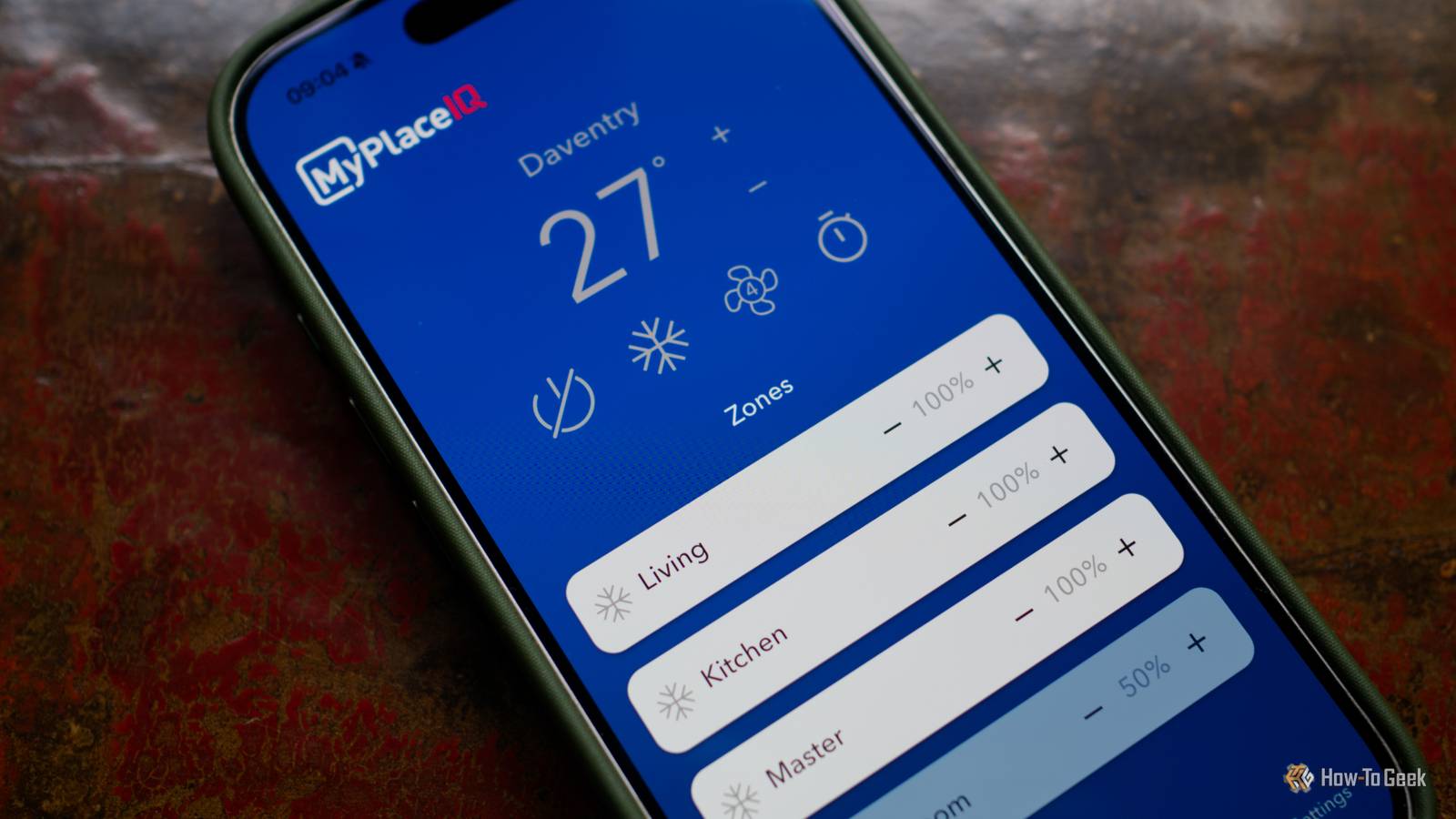
How you go about this largely depends on what thermostat you have, what smart home system you’re using, and how your heating and cooling system works. For example, I have a ducted heat pump solution that is mostly used to cool my home, with four separate zones.
I’m in the process of adding four additional temperature sensors to vastly improve the performance of the system. With more sensors, the controller can modify the intensity of cooling and heating to suit each zone and still maintain an accurate temperature. This means I can turn off the living room zone at night and still keep the bedroom at the right temperature.

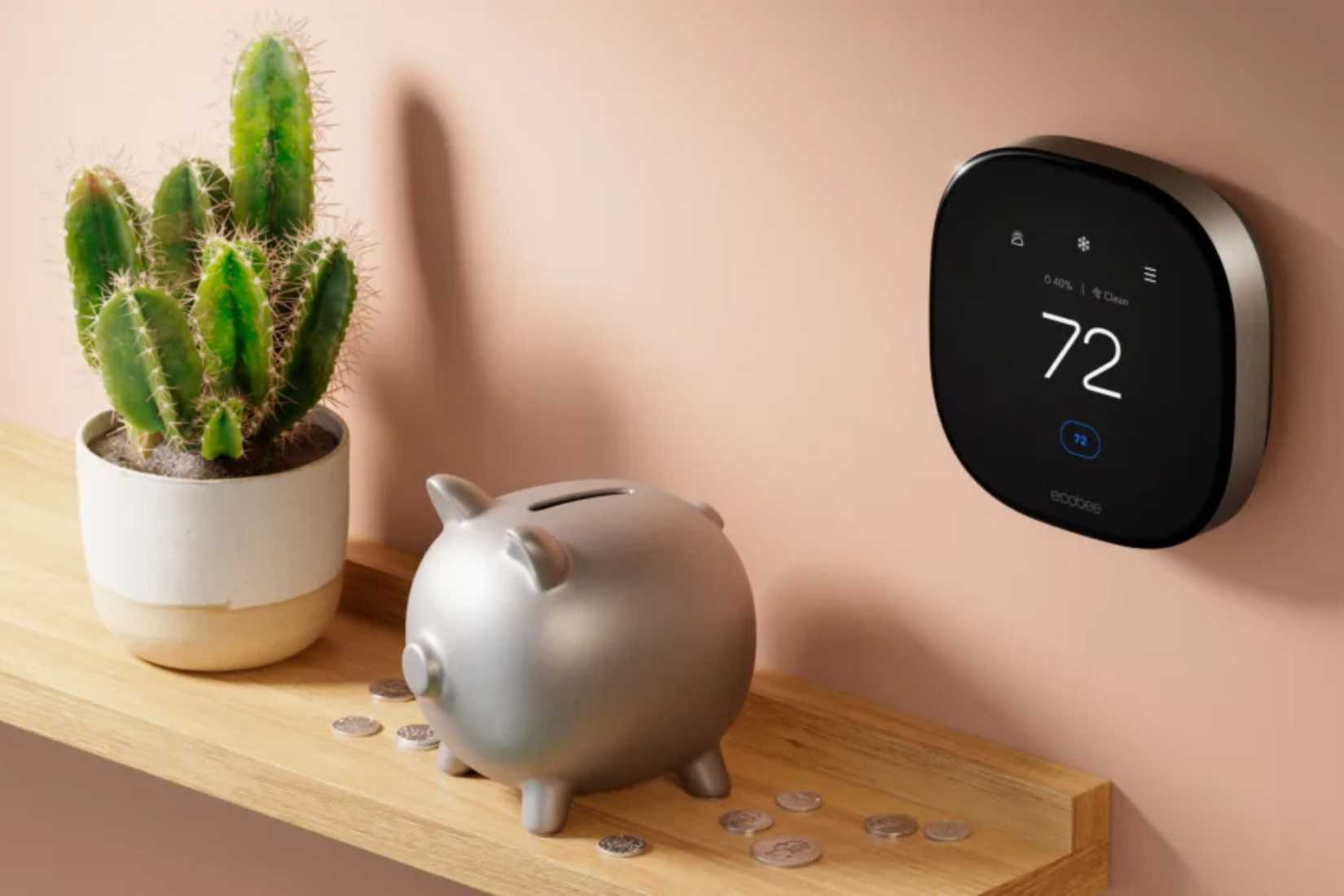
For most people, a smart thermostat that also includes its own room sensors achieves the same outcome. Solutions are available from brands like Honeywell (X8S, T9), Ecobee, Lennox (S40), and many more. Other heating solutions exist, like smart thermostatic radiator valves that control the flow of hot water to a radiator—independently of the main thermostat.
For anyone using Home Assistant, some cheap temperature sensors (like IKEA’s bargain-priced Timmerflotte) can also be used with integrations like Better Thermostat to have your Home Assistant manage your heating and cooling instead of a dedicated device.
Use this Home Assistant helper to create an adjusted reading
In another scenario, you might find that your thermostat or a temperature sensor that you’ve come to rely on simply isn’t accurate. This isn’t as uncommon as you might think, temperature sensors are often off by a few degrees or more—even identical models from the same manufacturer.
The first thing you should do is wait 24 to 48 hours for your sensors to “settle down.” Cheap analog thermometers are usually fairly accurate, so you can use these to get a good baseline reading and see how your sensors compare. If you find that one or more are consistently providing a reading that’s beyond an acceptable range of error, all hope is not lost.
If you’re using Home Assistant to manage your smart home (and let’s be honest, you probably should be), you can create a new corrected sensor based on your inaccurate thermostat or temperature sensor and use that in your automations instead.
The first thing to do is figure out the degree to which your faulty temperature sensor or thermostat is off. Next, find the device in question under Settings > Devices and then click on the “Temperature” reading, followed by the “cog” settings button. Make a note of the sensor’s entity name; it will look like sensor.thermostat_temperature.
With this information in hand, head to Settings > Devices & Services and click on the “Helpers” tab. Now click “Create helper” at the bottom of the screen. From the list, select Template followed by Sensor. Give your sensor a name—I suggest using the same name as your existing thermostat or sensor with “adjusted” or “calibrated” after it.

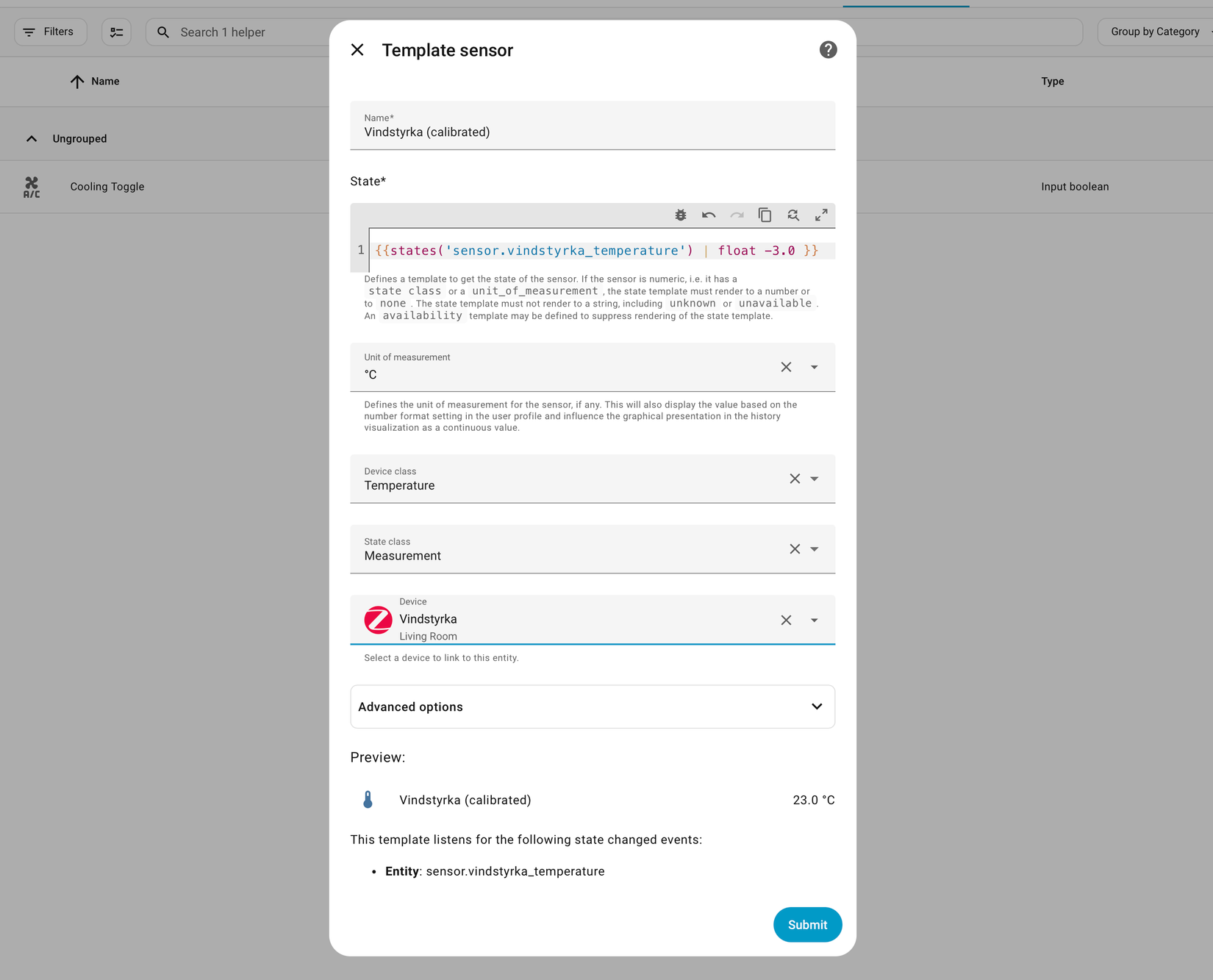
Now fill out the rest of the form, selecting “Temperature” from “Device class” and “Measurement” under “State class.” Select the matching “Unit of measurement” (ºF or ºC), and finally select the “Device” you’re trying to correct. The last thing to do is to add the following code in the “State” box:
{ float -3.0 }
Replace sensor.thermostat_temperature with the entity name you noted earlier, then -3.0 with your desired offset. For example, to increase the temperature by 2.5 degrees, you’d use float +2.5.
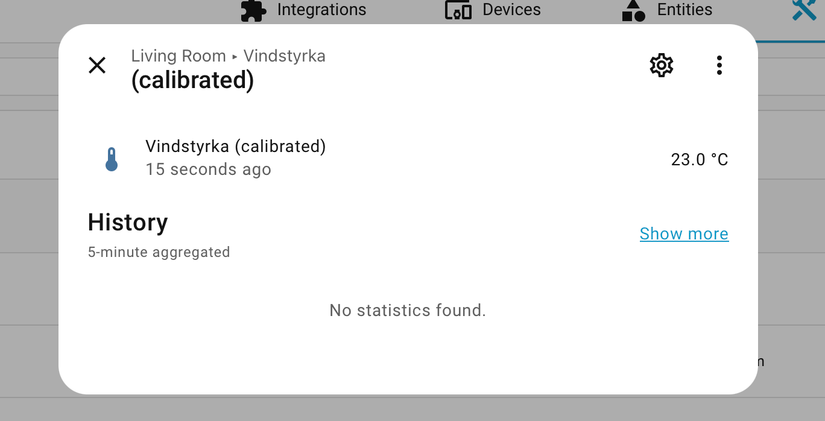
Hit “Submit,” and you will create a new sensor that uses your existing sensor for the baseline temperature, but that applies your correction to the reading. You can now use this as your primary temperature sensor for climate-related automations.

Alternatively, average your temperature sensors
Another option is to create a temperature reading that is an average of all of your temperature sensors. This is an imperfect solution, but you might prefer it. You can do this under Settings > Devices & services > Helpers using “Create helper” and selecting “Combine the state of several sensors.”
Find your first sensor, add it, then click “Add entity” and keep adding sensors until you’re happy. Give your sensor a name and hit “Submit” to create it. You can then use it as an averaged temperature in your automations.
These are just two examples of how Home Assistant’s helpers can improve your smart home. Check out what else you should be using helpers for.
link